Common Issues
This page covers the most common issues users encounter with Syntra ODBC and how to resolve them.
Connection Issues
Section titled “Connection Issues””Connection refused” when connecting to Syntra
Section titled “”Connection refused” when connecting to Syntra”Cause: The Syntra service is not running, or it is listening on a different port.
Solutions:
- Check that the Syntra service is running:
Get-Service SyntraODBCin PowerShell. - Verify the port in
config.tomlmatches what your client is using (default:5433). - Check the Windows Firewall is not blocking port 5433.
- Review the log at
C:\ProgramData\SyntraODBC\logs\syntra.logfor startup errors.
”Authentication failed”
Section titled “”Authentication failed””Cause: Incorrect username or password.
Solutions:
- Verify your credentials match those in
config.toml. - The default username is
qbconnect. Passwords are case-sensitive. - If you recently changed the password in
config.toml, restart Syntra ODBC for the change to take effect.
”ODBC driver not found” in ODBC Data Source Administrator
Section titled “”ODBC driver not found” in ODBC Data Source Administrator”Cause: The ODBC driver was not registered during installation, or there is a 32-bit/64-bit mismatch.
Solutions:
- Re-run the Syntra installer to register the driver. The installer sets up both a 64-bit and a 32-bit
Syntra ODBC - QuickBooks ODBCdriver and two matching DSNs (Syntra QuickBooks64-bit and 32-bit). - If your application is 32-bit (e.g., older Excel, Crystal Reports), open the 32-bit ODBC administrator at
C:\Windows\SysWOW64\odbcad32.exeand confirm the 32-bitSyntra QuickBooksDSN is listed on the System DSN tab. - Verify
syntra-odbc.dllis present in the Syntra installationdrivers\x64\anddrivers\x86\subdirectories.
QuickBooks Issues
Section titled “QuickBooks Issues””QuickBooks is not running” error on write operations
Section titled “”QuickBooks is not running” error on write operations”Cause: Write operations (INSERT, UPDATE, DELETE) require QuickBooks Desktop to be open with the company file loaded.
Solutions:
- Open QuickBooks Desktop and ensure the correct company file is active.
- Verify QuickBooks is running under the same Windows user account as the Syntra service.
- Check that Syntra is authorized in QuickBooks: Edit > Preferences > Integrated Applications.
”QuickBooks access denied”
Section titled “”QuickBooks access denied””Cause: Syntra has not been authorized in QuickBooks, or the authorization was revoked.
Solutions:
- In QuickBooks, go to Edit > Preferences > Integrated Applications > Company Preferences.
- Find Syntra ODBC in the list and ensure it has access.
- If not listed, restart the Syntra service. QuickBooks should display an authorization prompt.
- Make sure QuickBooks is not in single-user mode if multiple applications need access.
QuickBooks crashed and is stuck on an unrecoverable error dialog
Section titled “QuickBooks crashed and is stuck on an unrecoverable error dialog”Cause: QuickBooks Desktop crashed during a live request and is waiting on one or more modal dialogs before it can fully exit and reopen.
Solutions:
- In Syntra, open Settings > QuickBooks and enable Auto-recover QuickBooks after a crash.
- Set Company file to the exact
.QBWyou want Syntra to reopen. - Fill the QuickBooks login fields in Syntra if your company file prompts for a username, password, or both.
- Verify Syntra has permanent QuickBooks authorization under Edit > Preferences > Integrated Applications.
- See QuickBooks Crash Recovery for the full recovery setup and requirements.
Stale data / cache not updating
Section titled “Stale data / cache not updating”Cause: Incremental sync may have stalled, or the table’s polling tier is set to a long interval.
Solutions:
- Force a sync:
CALL qb_sync_table('tablename'); - Rebuild the entire cache:
CALL qb_rebuild_all(); - Check the cache status:
SELECT * FROM qb_cache_status; - Verify QuickBooks is running, as cache sync requires an active QuickBooks instance.
Query Issues
Section titled “Query Issues””Table not found” error
Section titled “”Table not found” error”Cause: The table name may be misspelled, or the cache has not completed its initial sync.
Solutions:
- Run
SHOW TABLES;to see all available tables. - Table names are lowercase: use
customers, notCustomers. - If the Syntra service just started, wait for the initial sync to complete.
Slow queries
Section titled “Slow queries”Cause: Query is hitting the live QBFC path instead of the cache, or the query scans too much data.
Solutions:
- Remove
SET QB_MAX_STALENESS = 0unless you specifically need live data. - Add WHERE clauses to limit the data scanned.
- Use LIMIT for exploratory queries.
- See Performance for detailed tuning advice.
Custom fields not appearing
Section titled “Custom fields not appearing”Cause: Custom fields are discovered during sync. New custom fields require a cache rebuild.
Solutions:
- Run
CALL qb_rebuild_all();to rediscover custom fields. - Ensure at least one record in QuickBooks has a value set for the custom field.
- See Custom Fields for details.
Service Issues
Section titled “Service Issues”Service fails to start
Section titled “Service fails to start”Cause: Configuration error, port conflict, or missing files.
Solutions:
- Check the log file at
C:\ProgramData\SyntraODBC\logs\syntra.log. - Verify
config.tomlis valid TOML syntax. - Ensure port 5433 is not in use by another application:
netstat -an | findstr 5433. - If running as a specific user, verify that account has the “Log on as a service” right.
Service stops unexpectedly
Section titled “Service stops unexpectedly”Solutions:
- Check Windows Event Viewer (Application log) for crash details.
- Review the Syntra log for error messages before the stop.
- Configure automatic restart in the service Recovery settings.
- Ensure sufficient disk space for the cache file.
Where are the logs?
Section titled “Where are the logs?”Syntra ODBC writes a rolling log to %ProgramData%\SyntraODBC\logs\syntra.log. You can tail that file with any text editor when you need deep diagnostics. For day-to-day troubleshooting, the Syntra ODBC app has a built-in Log tab that shows the same log stream live, with filters and search:
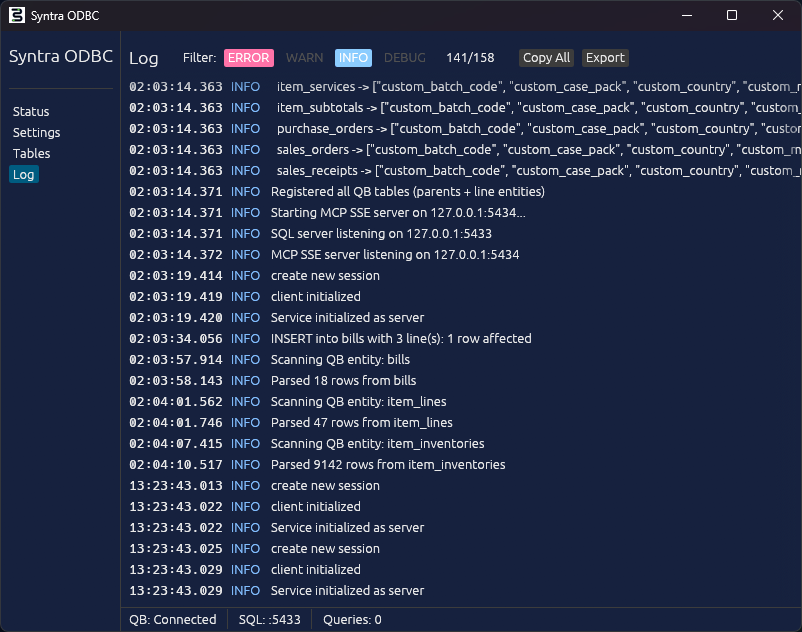
Use the Log tab to:
- Watch a write operation land in real time. Every
insert_record,update_record, anddelete_recordcall prints the generated qbXML request/response, which is what you want when a QuickBooks error code is unclear. - Confirm cache syncs.
Fetched bills,Fetched charges,Fetched invoicesmessages appear as the background sync engine pulls each entity. - Trace schema operations.
Scanning QueryRoot,Building xsd schema for update/insert into ...messages appear when Syntra introspects QuickBooks to build its writable-column map for a new entity. - Filter by level. The tab has buttons for
TRACE,DEBUG,INFO,WARN,ERROR. Start atINFOfor normal diagnostics; drop toDEBUGorTRACEwhen you need more detail. The log level also controls what gets written to disk, via the[logging] levelkey inconfig.toml.
When reporting an issue to support, copy the relevant 20-30 lines from around the error and attach them to your report. The Log tab’s search makes it easy to jump to the first ERROR or WARN line.