SQL Server (Linked Server)
You can query QuickBooks data directly from Microsoft SQL Server by setting up Syntra ODBC as a linked server. This uses the MSDASQL provider (the built-in ODBC bridge in SQL Server) to connect through your Syntra ODBC data source.
Prerequisites
Section titled “Prerequisites”- Syntra ODBC installed and running
- An ODBC Data Source (DSN) configured (see ODBC Driver Setup)
- Microsoft SQL Server with
MSDASQLprovider available
Setting Up the Linked Server
Section titled “Setting Up the Linked Server”Option A: Using T-SQL
Section titled “Option A: Using T-SQL”Step 1: Create the Linked Server
Section titled “Step 1: Create the Linked Server”Run the following in SQL Server Management Studio (SSMS) or any T-SQL client. The @datasrc value must match the name of your ODBC Data Source (DSN) exactly as it appears in the ODBC Data Source Administrator.
EXEC sp_addlinkedserver @server = N'SYNTRA', @srvproduct = N'', @provider = N'MSDASQL', @datasrc = N'Syntra QuickBooks';Important: Use
MSDASQLas the provider. Other providers (such asSSISOLEDB) will not work correctly with Syntra ODBC.
Note:
@datasrcis the ODBC Data Source Name (DSN) you created during ODBC Driver Setup. If you named your DSN something different (e.g.,SyntraODBC), use that name here instead.
Step 2: Configure Login Mapping
Section titled “Step 2: Configure Login Mapping”Map SQL Server logins to the Syntra credentials:
EXEC sp_addlinkedsrvlogin @rmtsrvname = N'SYNTRA', @useself = N'FALSE', @rmtuser = N'sa', @rmtpassword = N'';Set @rmtuser and @rmtpassword to match the credentials in your Syntra config.toml (default username is qbconnect).
Step 3: Enable RPC
Section titled “Step 3: Enable RPC”Enable remote procedure calls so SQL Server can execute write operations on the linked server:
EXEC sp_serveroption @server = N'SYNTRA', @optname = 'rpc out', @optvalue = 'true';Option B: Using SSMS GUI
Section titled “Option B: Using SSMS GUI”- Connect to your SQL Server in SSMS
- Expand Server Objects > right-click Linked Servers > New Linked Server…
General Tab:
| Field | Value |
|---|---|
| Linked server | SYNTRA |
| Server type | Other data source |
| Provider | Microsoft OLE DB Provider for ODBC Drivers |
| Product name | Syntra ODBC (free-form label — any value works) |
| Data source | Your DSN name (e.g., Syntra QuickBooks) |
Security Tab:
- Select Be made using this security context
- Remote login:
sa - With password: (leave blank)
Server Options Tab:
| Option | Value |
|---|---|
| RPC | True |
| RPC Out | True |
Click OK, then right-click the new SYNTRA linked server > Test Connection to verify.
Verifying the Connection
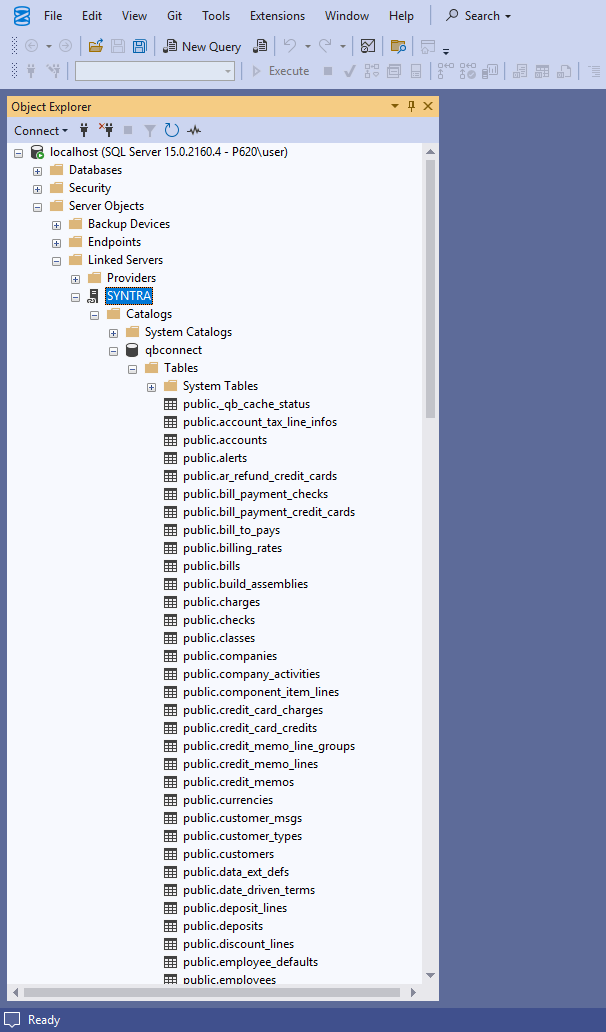
Section titled “Verifying the Connection”After setup, expand SYNTRA > Catalogs > qbconnect > Tables in the SSMS Object Explorer. You should see every QuickBooks table listed under the public schema (public.customers, public.invoices, public.accounts, and so on).
-- Quick connectivity testEXEC sp_testlinkedserver N'SYNTRA';Reading Data
Section titled “Reading Data”Basic Queries
Section titled “Basic Queries”Use OPENQUERY to run SQL queries against QuickBooks from T-SQL:
-- List customersSELECT * FROM OPENQUERY(SYNTRA, 'SELECT * FROM customers LIMIT 10');
-- Browse inventory itemsSELECT * FROM OPENQUERY(SYNTRA, 'SELECT * FROM item_inventories LIMIT 100');
-- View invoicesSELECT * FROM OPENQUERY(SYNTRA,    'SELECT ref_number, txn_date, customer_ref_full_name, balance_remaining     FROM invoices LIMIT 10');
-- List accountsSELECT * FROM OPENQUERY(SYNTRA, 'SELECT * FROM accounts LIMIT 10');
Filtering
Section titled “Filtering”Push filters inside the OPENQUERY call for best performance. Syntra pushes these directly to the data source:
-- Customers with a balanceSELECT * FROM OPENQUERY(SYNTRA,    'SELECT full_name, balance FROM customers WHERE balance > 0');
-- Invoices for a specific customerSELECT * FROM OPENQUERY(SYNTRA,    'SELECT ref_number, txn_date, balance_remaining FROM invoices     WHERE customer_ref_full_name = ''Acme Corporation''');
-- Unpaid invoicesSELECT * FROM OPENQUERY(SYNTRA,    'SELECT ref_number, customer_ref_full_name, balance_remaining     FROM invoices WHERE is_paid = false');
Joining with Local SQL Server Tables
Section titled “Joining with Local SQL Server Tables”Combine QuickBooks data with your local SQL Server tables:
-- Match QuickBooks customers with local ordersSELECT    o.order_id,    o.order_date,    qb.full_name,    qb.balanceFROM dbo.orders AS oINNER JOIN OPENQUERY(SYNTRA, 'SELECT full_name, balance FROM customers') AS qb    ON o.customer_name = qb.full_name;
-- Enrich local invoices with QB line item detailsSELECT    local_inv.invoice_number,    qb_lines.item_ref_full_name,    qb_lines.quantity,    qb_lines.rate,    qb_lines.amountFROM dbo.local_invoices AS local_invINNER JOIN OPENQUERY(SYNTRA, 'SELECT txn_id, item_ref_full_name, quantity, rate, amount FROM invoice_lines') AS qb_lines    ON local_inv.qb_txn_id = qb_lines.txn_id;
Four-Part Naming
Section titled “Four-Part Naming”You can also query using the four-part name syntax. Note that this pulls all rows before filtering locally, so OPENQUERY with server-side filters is preferred for large tables:
SELECT TOP 10 * FROM SYNTRA...customers;SELECT TOP 5 * FROM SYNTRA...accounts;Aggregates and Analytics
Section titled “Aggregates and Analytics”-- Customer balances summarySELECT * FROM OPENQUERY(SYNTRA, 'SELECT full_name, balance FROM customers WHERE balance > 0 ORDER BY balance DESC');
-- Invoice totals by customerSELECT * FROM OPENQUERY(SYNTRA, 'SELECT customer_ref_full_name, COUNT(*) AS invoice_count, SUM(subtotal) AS total FROM invoices GROUP BY customer_ref_full_name');Writing Data
Section titled “Writing Data”Write operations use EXEC ... AT SYNTRA syntax and go directly to QuickBooks in real time.
Creating Customers
Section titled “Creating Customers”EXEC ('INSERT INTO customers (name, phone, email)Creating Transactions with Line Items
Section titled “Creating Transactions with Line Items”QuickBooks requires at least one line item when creating transactions. Use the line_ prefix to include line items inline:
-- Create an invoice with a line itemEXEC ('INSERT INTO invoices    (customer_ref_full_name, txn_date, ref_number, memo,     line_item_ref_full_name, line_quantity, line_rate)    VALUES    (''Acme Corporation'', ''2025-06-15'', ''INV-1001'', ''June consulting'',     ''Consulting:Hourly'', ''10'', ''150.00'')') AT SYNTRA;
-- Create an estimateEXEC ('INSERT INTO estimates    (customer_ref_full_name, txn_date,     line_item_ref_full_name, line_quantity, line_rate)    VALUES    (''Acme Corporation'', ''2025-06-01'',     ''Widget-500'', ''5'', ''25.00'')') AT SYNTRA;
-- Create a sales receiptEXEC ('INSERT INTO sales_receipts    (customer_ref_full_name, txn_date,     line_item_ref_full_name, line_quantity, line_rate)    VALUES    (''Acme Corporation'', ''2025-06-15'',     ''Widget-500'', ''3'', ''50.00'')') AT SYNTRA;
-- Create a credit memoEXEC ('INSERT INTO credit_memos    (customer_ref_full_name, txn_date,     line_item_ref_full_name, line_quantity, line_rate)    VALUES    (''Acme Corporation'', ''2025-06-20'',     ''Widget-500'', ''1'', ''50.00'')') AT SYNTRA;
-- Create a purchase orderEXEC ('INSERT INTO purchase_orders    (vendor_ref_full_name, txn_date,     line_item_ref_full_name, line_quantity, line_rate)    VALUES    (''Office Supplies Co'', ''2025-06-01'',     ''Widget-500'', ''100'', ''10.00'')') AT SYNTRA;
-- Create a sales orderEXEC ('INSERT INTO sales_orders    (customer_ref_full_name, txn_date,     line_item_ref_full_name, line_quantity, line_rate)    VALUES    (''Acme Corporation'', ''2025-07-01'',     ''Widget-500'', ''20'', ''45.00'')') AT SYNTRA;
Inline Line Columns
Section titled “Inline Line Columns”The line_ prefix maps columns to the transaction’s line entity. Common line columns:
| Column | Description |
|---|---|
line_item_ref_full_name | Item name |
line_item_ref_list_id | Item by ListID |
line_quantity | Quantity |
line_rate | Unit price |
line_amount | Total amount (overrides qty x rate) |
line_desc | Line description |
line_class_ref_full_name | Class assignment |
line_sales_tax_code_ref_full_name | Tax code |
Multi-line transactions
Section titled “Multi-line transactions”Create one transaction with multiple lines by repeating the header values across a multi-row VALUES clause. Syntra detects identical headers and groups the rows into a single parent with N lines.
EXEC ('INSERT INTO invoices (customer_ref_full_name, txn_date, ref_number, memo, line_item_ref_full_name, line_quantity, line_rate)VALUES (''Acme Corporation'', ''2025-06-15'', ''INV-1002'', ''June consulting'', ''Consulting:Hourly'', ''10'', ''150.00''), (''Acme Corporation'', ''2025-06-15'', ''INV-1002'', ''June consulting'', ''Consulting:Advisory'', ''4'', ''225.00''), (''Acme Corporation'', ''2025-06-15'', ''INV-1002'', ''June consulting'', ''Travel:Mileage'', ''120'', ''0.67'')') AT SYNTRA;When creating a new transaction, lines are declared alongside the parent in the single parent INSERT using the line_* column pattern shown above. The mod-capable line tables (invoice_lines, sales_order_lines, item_lines, expense_lines, and others) additionally accept direct UPDATE and INSERT to edit or append lines on an existing transaction. See INSERT / UPDATE / DELETE for the full rules, including shape-detection for bills (expense-lines vs item-lines) and the Debit/Credit discriminator on journal entries.
Updating Records
Section titled “Updating Records”-- Update a customerEXEC ('UPDATE customers SET phone = ''555-0200'' WHERE full_name = ''Acme Corporation''') AT SYNTRA;
-- Update an invoice memoEXEC ('UPDATE invoices SET memo = ''Updated via linked server'' WHERE ref_number = ''INV-1001''') AT SYNTRA;Deleting Records
Section titled “Deleting Records”-- Delete transactions first, then the customerEXEC ('DELETE FROM invoices WHERE customer_ref_full_name = ''Test Customer''') AT SYNTRA;EXEC ('DELETE FROM customers WHERE full_name = ''Test Customer''') AT SYNTRA;Note: QuickBooks keeps tombstone records for deleted names. You cannot reuse a deleted customer/vendor name.
Supported Transaction Types
Section titled “Supported Transaction Types”| Entity | Read | Insert | Inline lines | Update | Delete |
|---|---|---|---|---|---|
invoices | Yes | Yes | Yes | Yes | Yes |
credit_memos | Yes | Yes | Yes | Yes | Yes |
estimates | Yes | Yes | Yes | Yes | Yes |
sales_orders | Yes | Yes | Yes | Yes | Yes |
sales_receipts | Yes | Yes | Yes | Yes | Yes |
purchase_orders | Yes | Yes | Yes | Yes | Yes |
bills | Yes | Yes | Yes (item or expense, shape-detected) | Yes | Yes |
item_receipts | Yes | Yes | Yes | Yes | Yes |
vendor_credits | Yes | Yes | Yes | Yes | Yes |
checks | Yes | Yes | Yes | Yes | Yes |
credit_card_charges | Yes | Yes | Yes | Yes | Yes |
credit_card_credits | Yes | Yes | Yes | Yes | Yes |
inventory_adjustments | Yes | Yes | Yes | Yes | Yes |
journal_entries | Yes | Yes | Yes (Debit/Credit via line_journal_line_type) | Yes | Yes |
build_assemblies | Yes | Yes | Yes | Yes | Yes |
transfer_inventories | Yes | Yes | Yes | Yes | Yes |
deposits | Yes | Yes | Yes | Yes | Yes |
customers | Yes | Yes | n/a | Yes | Yes |
vendors | Yes | Yes | n/a | Yes | Yes |
item_inventories and other item_* tables | Yes | Yes | n/a | Yes | Yes (on types that support it) |
employees | Yes | Yes | n/a | Yes | No |
accounts | Yes | Yes | n/a | Yes | Yes |
classes | Yes | Yes | n/a | Yes | Yes |
Removing a Linked Server
Section titled “Removing a Linked Server”To drop an existing linked server and recreate it (useful when changing configuration):
EXEC sp_dropserver @server = N'SYNTRA', @droplogins = 'droplogins';Then repeat the setup steps above to recreate it.
Troubleshooting
Section titled “Troubleshooting”Common Errors
Section titled “Common Errors”| Error | Cause | Fix |
|---|---|---|
| Cannot create an instance of OLE DB provider MSDASQL | Provider not enabled | Run SSMS as Administrator, or enable MSDASQL in SQL Server’s Linked Server Providers |
| Login failed | Credential mismatch | Verify @rmtuser and @rmtpassword match your config.toml |
| OLE DB provider supplied inconsistent metadata | Wrong provider | Ensure you used MSDASQL, not SSISOLEDB or another provider |
| The transaction is empty (QB 3180) | Missing line items | Use line_ prefix columns to include at least one line item |
| The name is already in use (QB 3100) | Duplicate name | Customer/vendor names must be unique in QuickBooks |
| The name is already deleted (QB 3102) | Reusing deleted name | QuickBooks reserves deleted names permanently; use a different name |
Recreating After Configuration Changes
Section titled “Recreating After Configuration Changes”If you change the ODBC DSN name or Syntra configuration, drop and recreate the linked server:
EXEC sp_dropserver @server = N'SYNTRA', @droplogins = 'droplogins';
EXEC sp_addlinkedserver    @server = N'SYNTRA',    @srvproduct = N'',    @provider = N'MSDASQL',    @datasrc = N'Syntra QuickBooks';
EXEC sp_addlinkedsrvlogin    @rmtsrvname = N'SYNTRA',    @useself = N'FALSE',    @rmtuser = N'sa',    @rmtpassword = N'';
EXEC sp_serveroption @server = N'SYNTRA', @optname = 'rpc out', @optvalue = 'true';
32-bit vs 64-bit
Section titled “32-bit vs 64-bit”If SQL Server is 64-bit, ensure the 64-bit ODBC DSN is configured. Use the 64-bit version of odbcad32.exe (located at C:\Windows\System32\odbcad32.exe). The 32-bit version is at C:\Windows\SysWOW64\odbcad32.exe.