First Connection
This page walks you through your very first successful SQL query against a live QuickBooks company file. By the end you will have verified every link in the chain: QuickBooks is running, Syntra is running, the two are authorized to talk, the SQL server is accepting connections, and your client can read real data.
The whole thing should take about five minutes.
Prerequisites
Section titled “Prerequisites”Before you start, confirm all of the following:
- QuickBooks Desktop is installed (Pro, Premier, or Enterprise, 2018 or newer).
- QuickBooks is running and a company file is currently open.
- You are signed in to QuickBooks as an Admin user for that company file. Non-admin users cannot authorize third-party applications.
- Syntra ODBC is installed. See Installation if you have not already run the installer.
If any of those are missing, go back and fix them before continuing. The connectivity test below assumes all four are in place.
Step 1: Launch Syntra ODBC
Section titled “Step 1: Launch Syntra ODBC”Open the Start Menu and select Syntra ODBC. A small window appears with a Status tab showing the current QuickBooks connection state, the SQL server port, cache mode, and the detected QuickBooks edition.
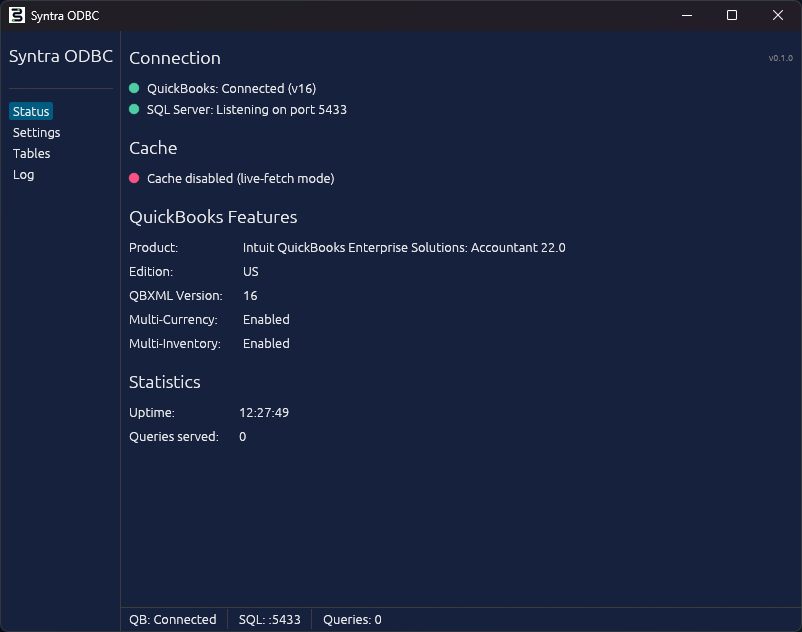
On a fresh install, the Status tab reads “QB disconnected” for a few seconds while Syntra contacts QuickBooks. That is normal. Once it switches to QB Connected with the QuickBooks product name and QBXML version listed, you are ready for Step 2.
Step 2: Authorize Syntra in QuickBooks (first time only)
Section titled “Step 2: Authorize Syntra in QuickBooks (first time only)”The very first time Syntra connects, QuickBooks pops up an Application Certificate dialog asking you to approve access:
“An application is requesting access to your company file. Do you want to allow this application to access this company file?”
The dialog shows Syntra ODBC as the requesting application.
Select “Yes, always allow access even if QuickBooks is not running” and click Continue, then Done on the confirmation screen.
Important: pick the “always allow” option, not “Yes, this time only”. Picking “this time only” forces Syntra to re-prompt on every startup and breaks cached-read workflows.
If the dialog never appears, go to Edit > Preferences > Integrated Applications > Company Preferences inside QuickBooks. If Syntra is already listed there, it is already authorized and you can move on. If it is not, make sure you are signed in as Admin and restart Syntra.
After you click Done, Syntra’s Status tab should switch to “QB connected” with your company file name, the QuickBooks edition, and the QBXML version. That is the green light.
Step 3: Run the connectivity test
Section titled “Step 3: Run the connectivity test”The connectivity test is a three-query sequence. Each query checks a different link in the chain. Run them in order from any SQL client; the examples below use the bundled Syntra Query Explorer, but any ODBC or SQL client pointed at localhost:5433 with username qbconnect will work.
Open Syntra Query Explorer from the Start Menu. It auto-fills the connection details from config.toml. Click Connect.
Query 1: ping
Section titled “Query 1: ping”SELECT 1 AS connected;Expected output:
| connected |
|---|
| 1 |
This confirms that your SQL client can talk to the Syntra SQL server. It does not yet prove that QuickBooks is hooked up.
If this fails: Syntra ODBC is not running, or the Query Explorer is pointed at the wrong host or port. Check config.toml for the correct host and port (defaults are 127.0.0.1 and 5433), and check the Windows Firewall if you are connecting from another machine.
Query 2: count customers
Section titled “Query 2: count customers”SELECT COUNT(*) AS customer_count FROM customers;Expected output:
| customer_count |
|---|
| 420 |
(Your number will be different; any non-zero integer means the handshake with QuickBooks is working.)
This confirms that Syntra successfully authorized with QuickBooks and can read real entity data. The customers table is one of the most commonly present tables in every company file, so it is a reliable target.
If this fails with “Table not found” or returns an empty error, QuickBooks is not open or the authorization did not complete. Go back to Step 2.
Query 3: browse the chart of accounts
Section titled “Query 3: browse the chart of accounts”SELECT name, account_typeFROM accountsWHERE is_active = trueORDER BY nameLIMIT 5;Expected output (your data will vary):
| name | account_type |
|---|---|
| Accounts Payable | AccountsPayable |
| Accounts Receivable | AccountsReceivable |
| Accounts Receivable - EUR | AccountsReceivable |
| Accumulated Depreciation | FixedAsset |
| Advertising and Promotion | Expense |
This confirms that multi-column SELECTs, WHERE filters, ORDER BY, and LIMIT all work end to end. If Query 2 passed and Query 3 fails, something is wrong with the SQL layer itself, which is unusual; file a bug report.
Step 4: Browse the schema
Section titled “Step 4: Browse the schema”In Query Explorer, the left panel lists every Syntra ODBC table. Click any table to see its columns. This is the fastest way to learn the schema without leaving the Explorer.
You can also list every table from SQL:
SELECT table_nameFROM information_schema.tablesWHERE table_schema = 'public'ORDER BY table_name;You should see 120+ entries including customers, invoices, item_inventories, bills, accounts, employees, sales_receipts, estimates, purchase_orders, journal_entries, sales_orders, credit_memos, and many more. QuickBooks item types each have their own table — item_inventories, item_services, item_non_inventories, and so on — rather than a single items table.
Next steps
Section titled “Next steps”With the connectivity test passing, you can move on to real work:
- SELECT Queries - the full SQL surface (JOINs, CTEs, aggregates, window functions).
- INSERT / UPDATE / DELETE - full write support (Standard and Pro).
- Syntra SQL Type Reference - what each numeric type code means.
- MCP Server Setup - connect Claude, Cursor, or any MCP-compatible AI tool.
- Python, Node.js, Power BI, Tableau, Excel - client-specific setup guides.
- Connection Strings - every supported connection string format.
Troubleshooting
Section titled “Troubleshooting”“QuickBooks is not running” or Syntra Status tab reads “QB disconnected”
Section titled ““QuickBooks is not running” or Syntra Status tab reads “QB disconnected””The Syntra service connects to QuickBooks over the QuickBooks SDK, which requires QuickBooks Desktop to be the process that owns the company file.
- Confirm QuickBooks Desktop is open.
- Confirm a company file is loaded (you should see the familiar Home page inside QuickBooks).
- Confirm you are on a supported edition: Pro, Premier, or Enterprise, 2018 or newer.
- Restart Syntra from the Start Menu.
The Application Certificate dialog never appears
Section titled “The Application Certificate dialog never appears”The dialog only appears when you are signed in to QuickBooks as an Admin user. If you are in multi-user mode or signed in as a standard user, switch to single-user mode and log in as Admin, then restart Syntra.
If Admin is signed in and the dialog still does not appear, check Edit > Preferences > Integrated Applications > Company Preferences inside QuickBooks. If Syntra is already listed there, you already approved it on a previous run and no dialog is needed. If it is not listed, remove any stale entry for “Syntra ODBC” and restart Syntra to trigger a fresh dialog.
“Yes, this time only” keeps getting picked by mistake
Section titled ““Yes, this time only” keeps getting picked by mistake”Go to Edit > Preferences > Integrated Applications > Company Preferences, find the Syntra ODBC entry, click Properties, and enable Allow this application to read and modify this company file and Allow this application to login automatically. That matches the “always allow” option.
“Authentication failed” when connecting
Section titled ““Authentication failed” when connecting”Your client is connecting to the right host and port but the username or password is wrong.
- The default username is
qbconnect(notsyntra). - The default password is in the
[auth]section ofconfig.tomlatC:\ProgramData\SyntraODBC\config.toml. - If you changed the password in
config.toml, restart Syntra ODBC for the change to take effect.
“Connection refused” or the client hangs on connect
Section titled ““Connection refused” or the client hangs on connect”- Confirm Syntra ODBC is running (check the Status tab).
- Confirm you are pointing at the right port. The default is
5433. - If you are connecting from another machine on the LAN, make sure Windows Firewall on the Syntra host allows inbound connections on port
5433. - If
config.tomlhas[server].host = "127.0.0.1"(the default), Syntra only accepts local connections. Change it to0.0.0.0to accept LAN connections, then restart Syntra.
Query 2 returns 0 or fewer customers than expected
Section titled “Query 2 returns 0 or fewer customers than expected”Your company file may just be empty. Try:
SELECT COUNT(*) FROM invoices;SELECT COUNT(*) FROM accounts;The chart of accounts is almost never empty in a real company file. If accounts is empty too, the company file is genuinely blank or the authorization is pointing at a different company file than the one you expect.
Everything works except voids
Section titled “Everything works except voids”INSERT, UPDATE, and DELETE are supported on every paid plan (trial, Standard, Pro). If only voids (CALL qb_void(...)) return a licensing error, that is expected — voiding is a Pro-only feature. See Pricing for the full plan matrix.
Still stuck?
Section titled “Still stuck?”Syntra writes detailed logs to %ProgramData%\SyntraODBC\logs\syntra-odbc.log. Open the log in a text editor and look for the most recent ERROR or WARN lines. They usually tell you exactly which link in the chain failed.
If the log does not make it obvious, contact support with the log excerpt attached.